Settings
The Settings tab is where you manage the settings for your domain in CookieHub. It is divided into five sections: General, Consent storage, Regional Settings, Languages and Categories.
General
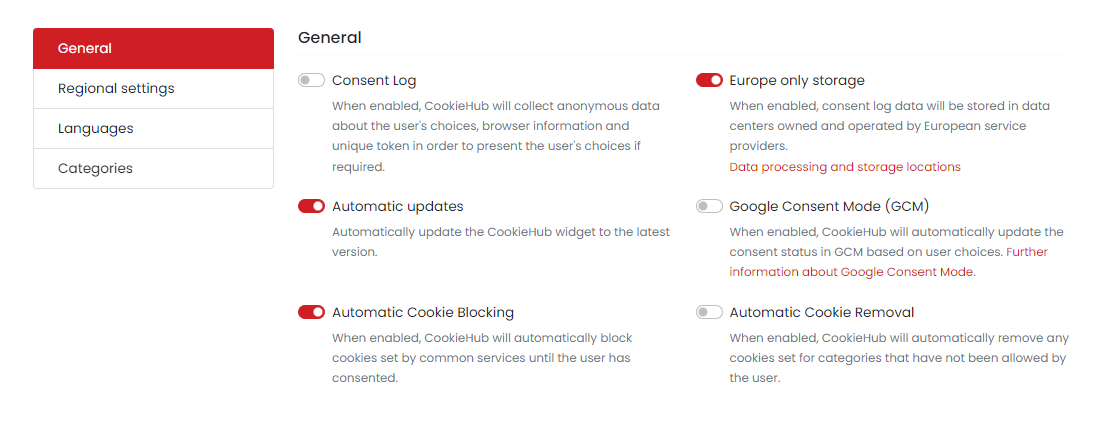
In the General section, you can enable or disable general settings for your domain. This includes options such as:
- Consent Log: When enabled, CookieHub will collect anonymous data about the user's choices, browser information, and unique token in order to present the user's choices if required.
- Automatic Updates: Automatically update the CookieHub widget to the latest version.
- Automatic Cookie Blocking: When enabled, CookieHub will automatically block cookies set by common services until the user has consented.
- Europe Only Storage: When enabled, consent log data will be stored in data centers owned and operated by European service providers.
- Google Consent Mode (GCM): When enabled, CookieHub will automatically update the consent status in GCM based on user choices.
- Automatic Cookie Removal: When enabled, CookieHub will automatically remove any cookies set for categories that have not been allowed by the user.
Consent storage
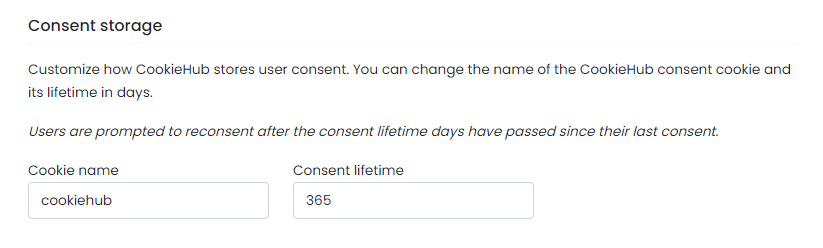
This section allows you to customize how CookieHub stores user consent. You can change the name of the CookieHub consent cookie and its lifetime in days. By default, the consent cookie is called "cookiehub" and has a lifetime of 365 days.
Users are prompted to reconsent after the consent lifetime days have passed since their last consent. This means that if a user gave consent to cookies on your website and the consent lifetime is set to 365 days, they will be prompted to give consent again after 365 days have passed. This is to ensure that users have control over their data and can change their preferences over time.
Regional settings
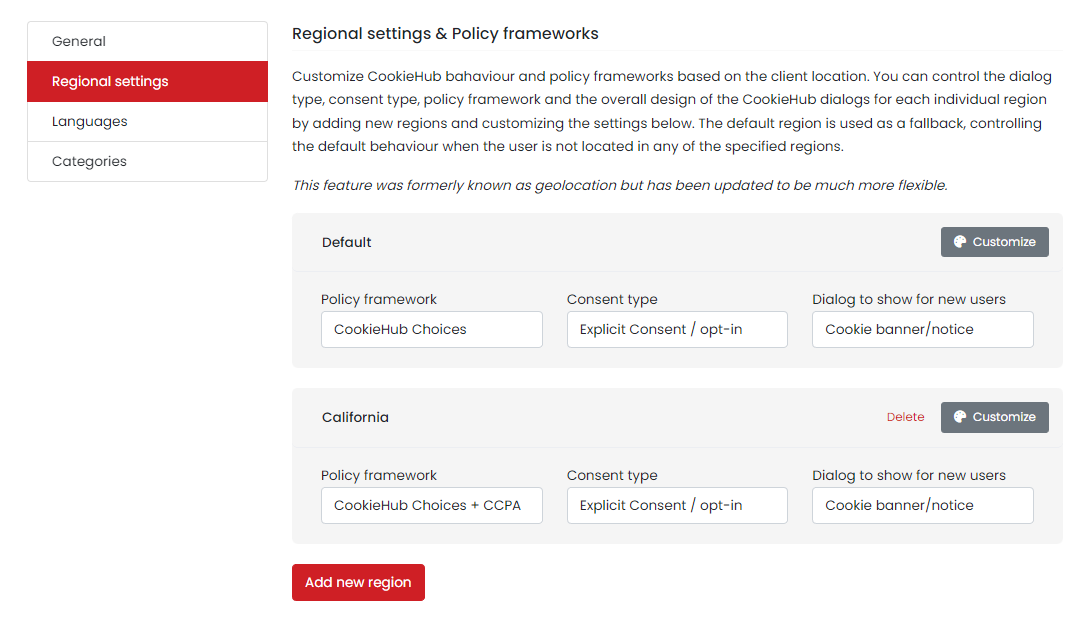
Customize CookieHub's behavior and policy frameworks based on the location of your website's visitors. With the Region settings, you can control the type of dialog, consent type, policy framework, and overall design of the CookieHub dialogs for each individual region. You can add new regions and customize their settings below. The default region is used as a fallback, controlling the default behavior when the user is not located in any of the specified regions.
Add region
To add a new region in CookieHub, follow these steps:
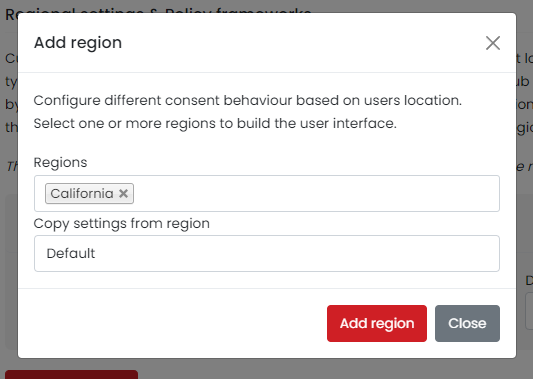
- Click the "Add new region" button in the "Regional settings" section of the "Settings" tab.
- Select the region you want to add from the dropdown menu. This can be a region group, such as "Europe," a country, or a U.S. state.
- If you want to copy settings from another region that has already been created for this domain, select that region from the "Copy settings from region" dropdown menu.
- Once you have selected the region and copied any necessary settings, click the "Add region" button to confirm.
This will create a new region in CookieHub that you can customize with its own dialog type, consent type, policy framework, and design. The default region will be used as a fallback when the user is not located in any of the specified regions.
Languages
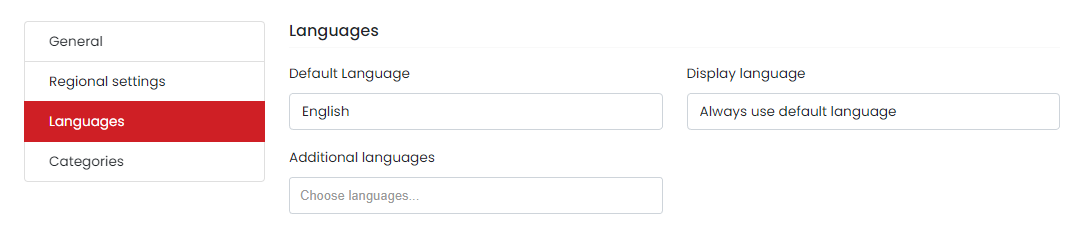
In the Languages section of the Settings tab, you can configure the language settings for your CookieHub widget. This includes selecting a default language and any additional languages you want to make available. You can also specify how the widget should determine which language to display based on various detection methods.
Here are the available options in the Display language dropdown:
- Always use default language: This option will always show the language selected in the Default language box.
- Automatically detect: With this option selected, CookieHub will automatically determine the language to display based on various detection methods.
- Match browser language: When this option is selected, CookieHub will detect the language sent by the user's browser and display a matching language if it's available.
- Match HTML tag language: If this option is selected, CookieHub will detect the language specified in the HTML lang property and display a matching language if it's available.
- Match URL prefix: This option detects the first section of the URL and tries to display a matching language if it's available. For example, if the URL is /en/about, CookieHub would use English based on the "en" part of the URL.
Categories
In the categories section, you can configure default settings for all categories in CookieHub. These settings can then be overridden for specific regions from the regional settings section or in the Customize dialog.
The following settings can be customized for each category:
- Checked by default: This sets the default checkbox state for the category when the user hasn't yet consented.
- Used for tracking cookies: If this is checked, CookieHub will override the "Checked by default" state and set it to unchecked if the user's browser sends the "do-not-track" flag.
- Visibility: This setting controls how to determine whether to show the category or not. It can be set to "Always visible", "Always hidden", or "Only show if any cookie is assigned to it".
- Consent type: By default, CookieHub will use the consent type specified for the region. However, this can be overridden here to always use "Implied consent / opt-out".
